Starting a chat
The Self-consulting screen, chat tabs, usage, and commands
Contents
When you log in, the Self-consulting screen opens. The chat is on the left, and My decision panel is on the right.
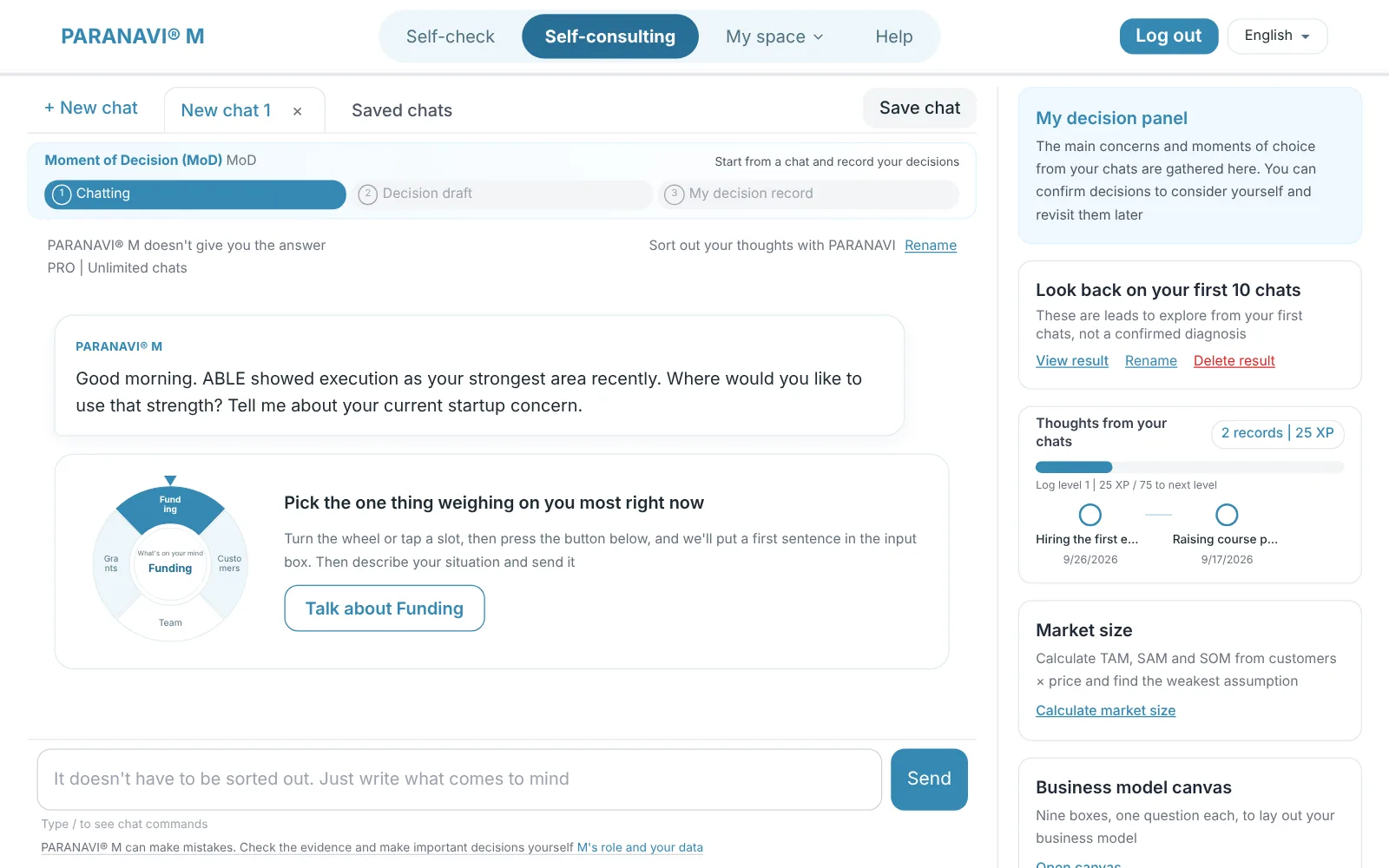
Screen layout
- Greeting: When you open a new chat, you see a greeting for the time of day. If you have decisions to revisit, M asks about those first.
- Choosing a concern: In the donut wheel below the greeting, pick one of Funding, Customers, Team, and Support programs, and press the button below to fill the first sentence into the input box. Then add your current situation and send it. The wheel disappears once you send your first message.
- Chat tabs: Open a tab with + New chat, and reopen past chats from Saved chats. You can open up to 10 tabs.
- Moment of Decision (MoD): Shows where you are right now, among Chatting, Decision draft, and My decision record.
- Usage: Shown above the input box, like FREE | n / 10, BASIC | n / 100, or PRO | Unlimited chats.
- Rename: You can rename your chat partner. Renaming doesn't change how it answers or the basis for decisions.
- Phone: In the top row, press the speech bubble button to open the chat list and Rename, and press the circle button to open the decision panel from the bottom. Your remaining sessions show below the input box. A dot appears on the circle button when a decision draft is ready.
Chatting
Unsorted thoughts are fine. Write whatever comes to mind and send it, and M widens your thinking with questions. When you open a new chat, M greets you based on your latest ABLE result or the topics of your past chats.
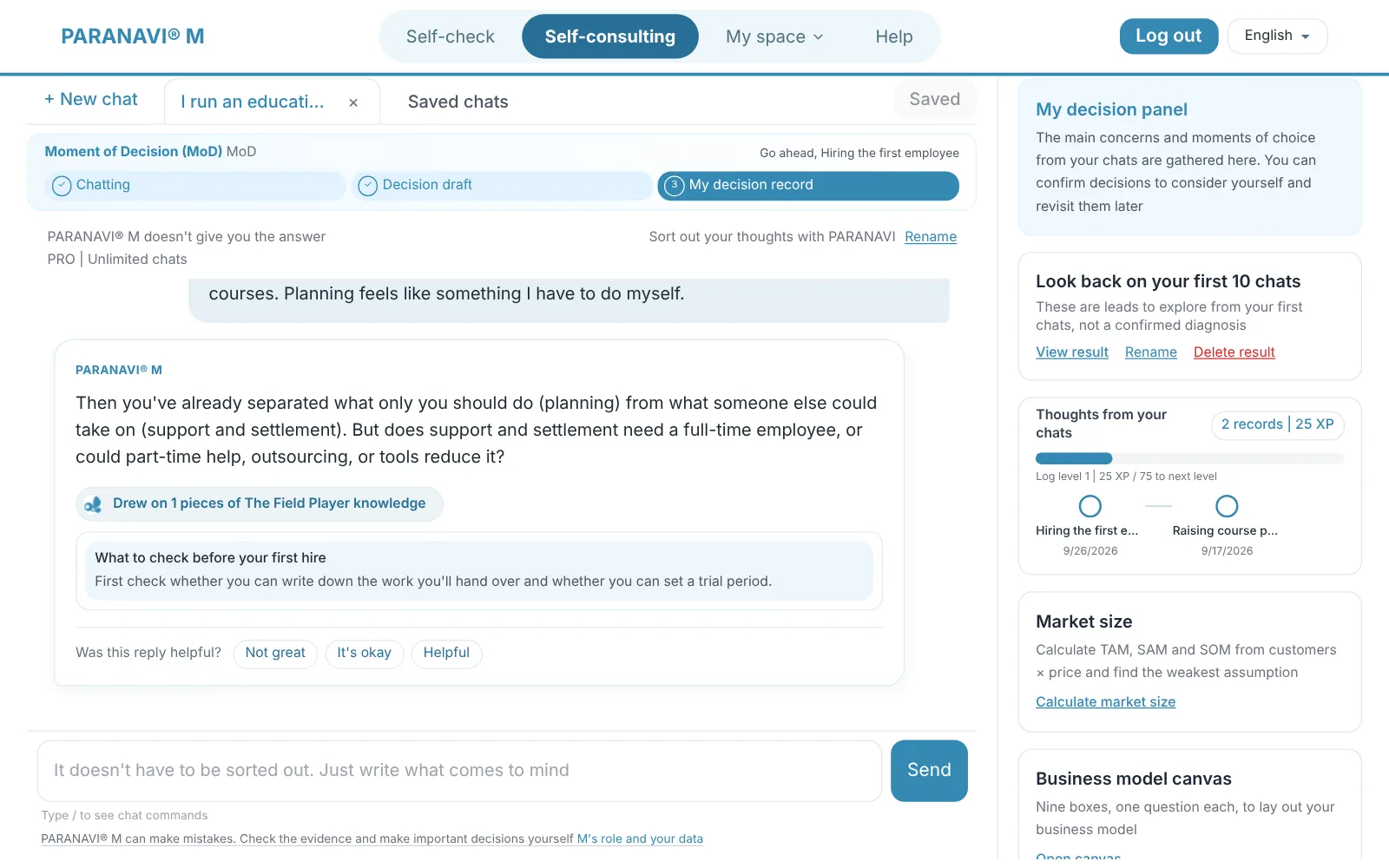
When M finds related knowledge, the answer shows Drew on n pieces of The Field Player knowledge below it. Press it to see the titles and parts of the knowledge it drew on. It doesn't appear when the relevance is low.
Commands
- /help: Shows the commands you can use.
- /clear: Clears the current screen and starts a new chat.
- /rm -rf .paranavi: Deletes all your chats on the server. Your decision log, XP, and ABLE results stay.
When you've used all your sessions
FREE gives you 10 welcome chats, and BASIC gives you 100 sessions. Each answer uses 1 session. When they run out, a notice appears in the input box, and you can keep chatting after changing your plan.