Look around before signing up
Before signing up, you can see how M works through sample chats and field questions. Real chats start with 10 free sessions after you sign up
Contents
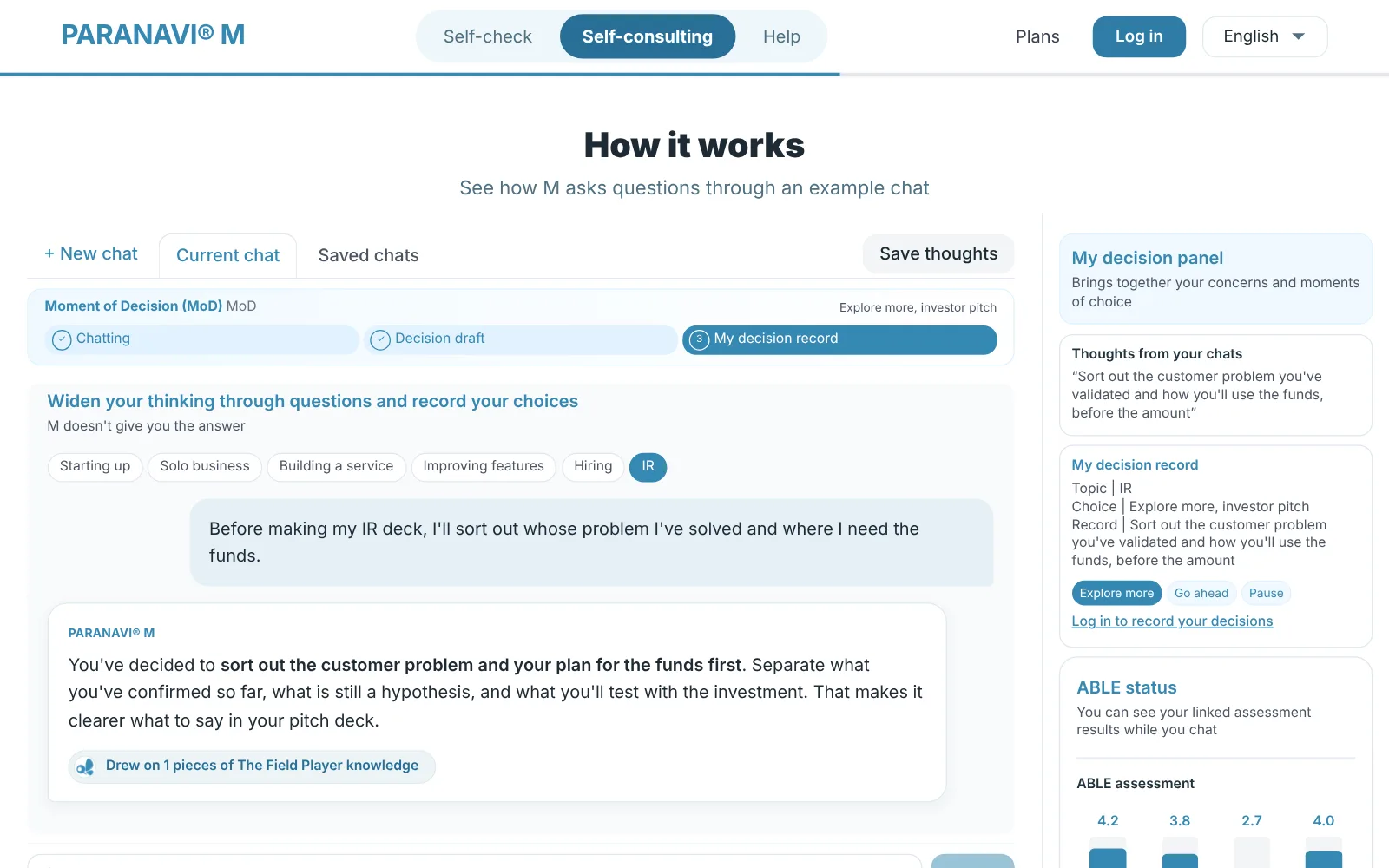
The Self-consulting intro screen (the Self-consulting button on the home screen) is a preview of the service. In the donut wheel at the top, pick the concern holding you back right now from Funding, Customers, Team, and Support programs to see a sample chat for that concern. Press Start with this concern, and the concern you picked carries over into your first chat after signing up. Below that, three questions about your business plan, your past decisions, and yourself as a founder show what M does. Press See how it works, or See an example with this question in the questions section, to move down to the How it works section. You can see how sample chats and the decision panel work without signing up. Real AI chats start with 10 free sessions after you sign up.
- 1
Pick a scene
Press one of Starting up, Solo business, Building a service, Improving features, Hiring, or IR to see a sample chat for that scene. If you don't pick one, the scenes change in turn.
- 2
See the decision panel
In My decision panel on the right, see examples of thoughts from your chats, my decision record, and ABLE status together.
- 3
Write down a concern
Write a concern in the input box, and topics to explore together and questions to think about first appear. These questions come from The Field Player's field knowledge, and you can see them without signing up.
- 4
Continue in a chat
When you send your concern, you move to the sign-up screen. After you sign up and log in, the sentence you wrote is filled into the Self-consulting input box as it was. If you already have an ABLE Insight or Lucky account, just log in with the same account.
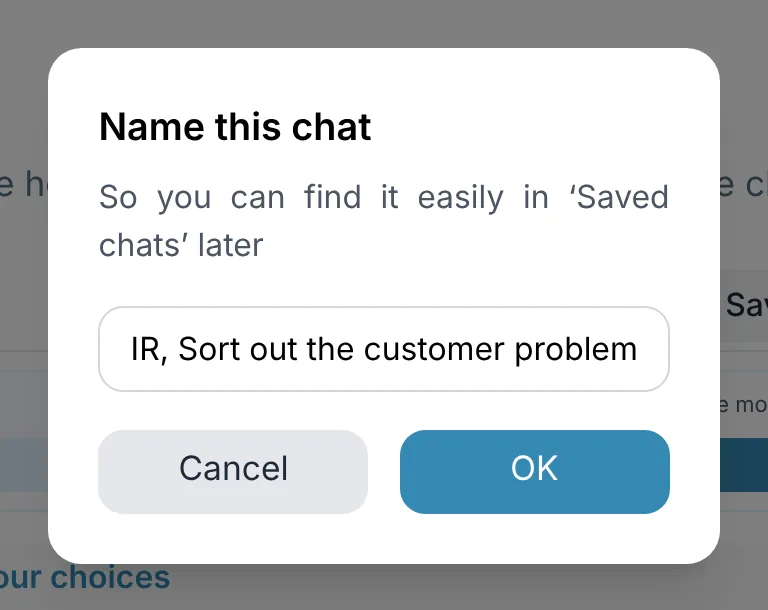
The sample chats, decisions, and ABLE scores in the preview are examples for each situation, not real records. Save thoughts is available for real chats on BASIC and higher plans.