Reading your report and shaping your answers
Review criteria item status, 5 questions, shaping an answer for each question, Ready to submit, and checking again
Contents
At the top of the report, the items that are well covered appear in one line. Below that are the submission readiness bar and the question cards.
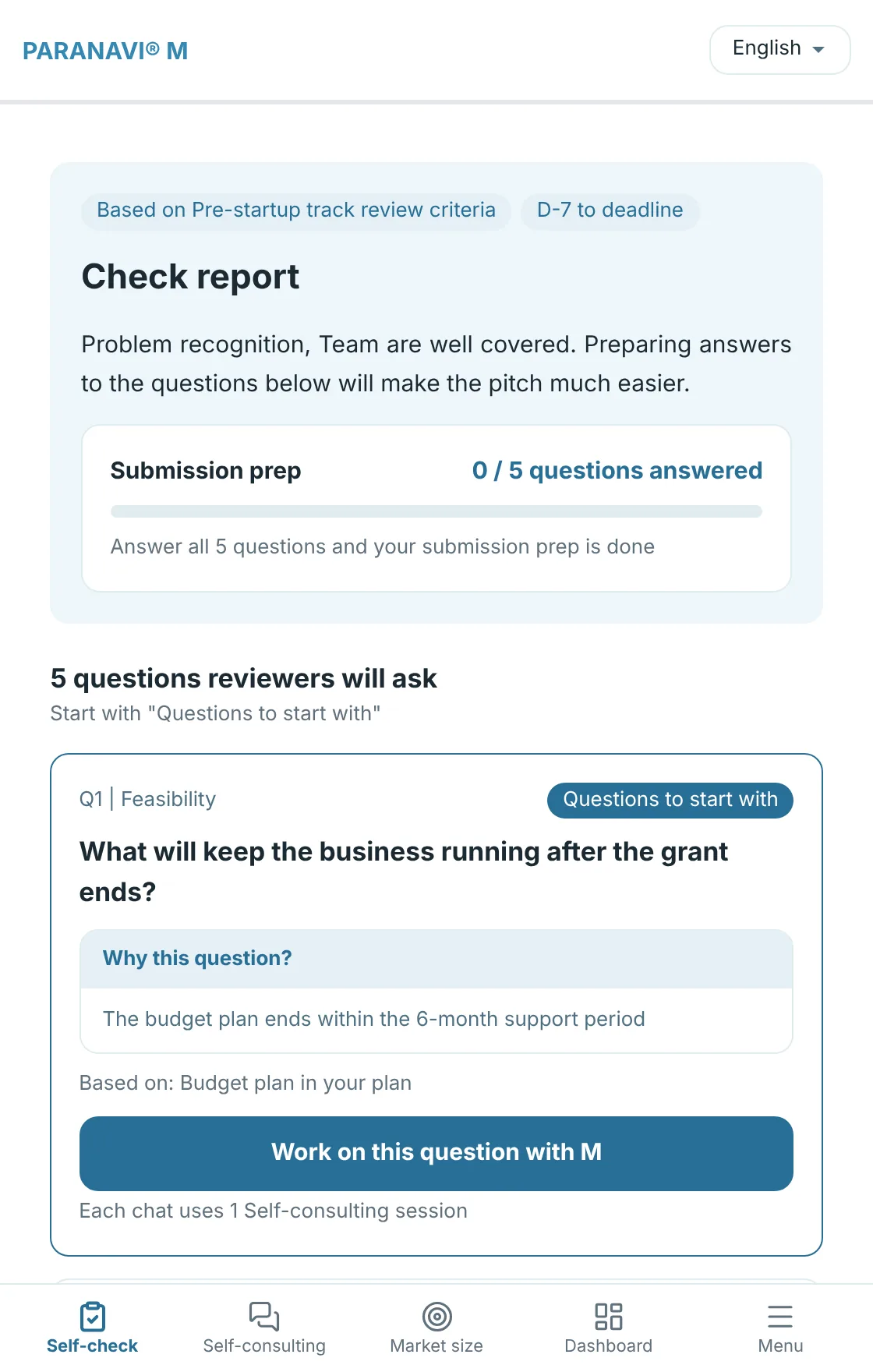
- Review criteria items: Marked as one of three, Covered, Weak evidence, or Missing.
- Question cards: Each question shows which item it came from, why it's asked, and which part of your plan it drew on.
- Questions to start with: Marked on the one card worth preparing first.
Shaping an answer to one question
- 1
Work on this question with M
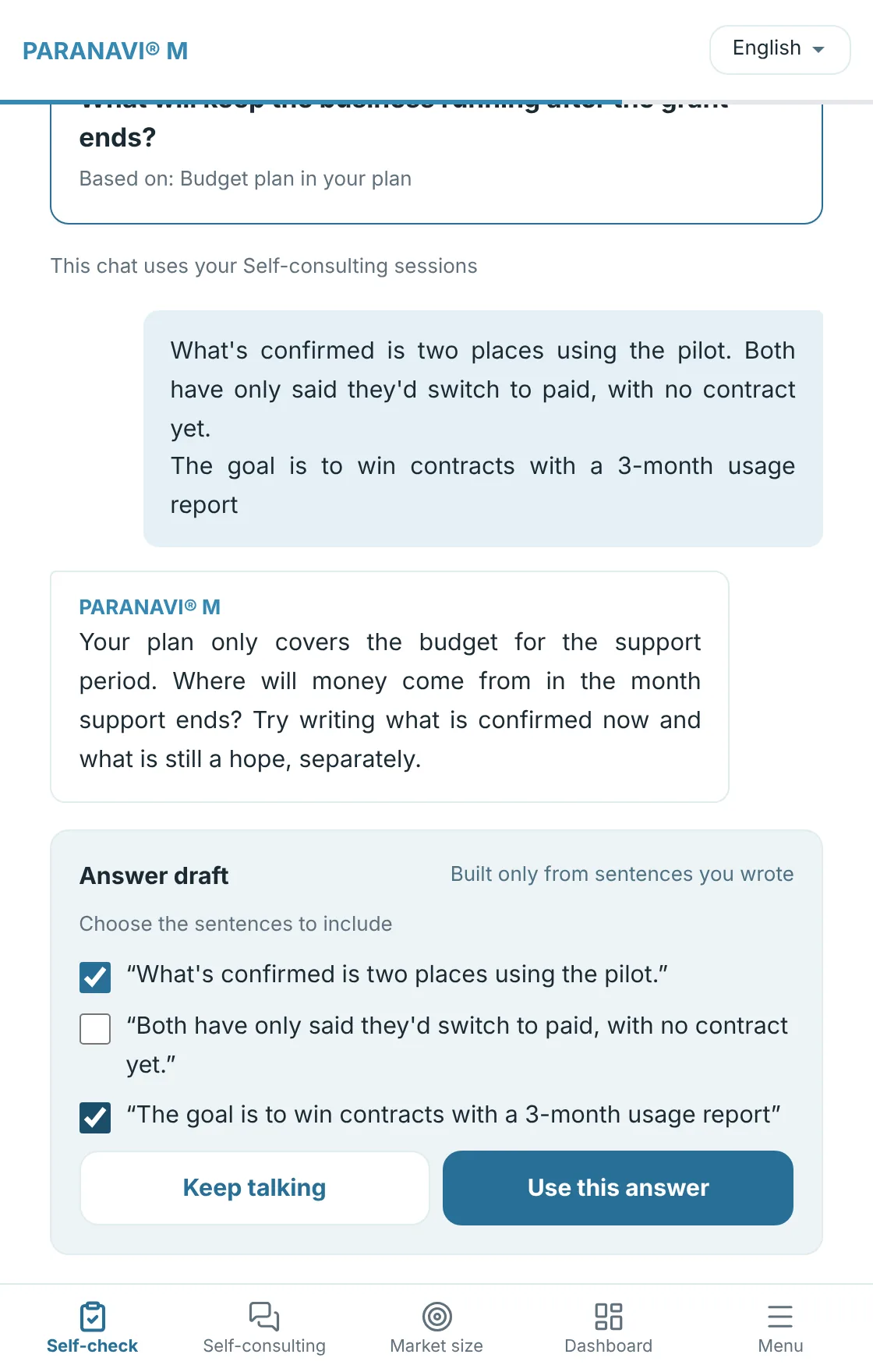
Press the button on the card to start a chat about that question. M doesn't write the answer for you. It guides you with questions.
- 2
See the answer draft
M builds the draft only from sentences you wrote in the chat. It doesn't add new facts or numbers.
- 3
Use this answer
Press it, and the report card shows Answered. Your answer is also saved in My decision record.
When you've answered all 5 questions, the Ready to submit screen opens. It shows that you've answered every question, and it doesn't indicate your chances of passing.
Connecting to My decision record
Your answers are saved in My decision record in Self-consulting under the name of the Self-check question. Press View report on a record to go back to that report. If you check a revised plan again and answer the same question again, no new record is created. The change is added to the same record as part of its history. On BASIC or PRO, or while using NAVIPASS, the chat where you shaped your answer also stays in your saved chats in Self-consulting, so you can keep talking.
Check your revised plan again
If you've revised your plan, upload it with Check your revised plan again on the report. Checking a revised version of the same plan isn't counted, and you can do it up to 10 times a day.
With NAVIPASS, chats started from Self-check don't count toward your Self-consulting sessions.